Feature · Car route
Car route: codriver follows the route your Tesla chose
Ready to start? Open Car route in your account on your phone. The whole setup takes about two minutes.
Set it up, step by step
Check what you need
A codriver account on Premium (monthly or yearly), your Tesla account connected to codriver, and your phone with the Tesla app, near the car. The setup happens on the phone: the Tesla screen takes no typing, so nothing here asks you to type in the car.
Open Car route on your phone
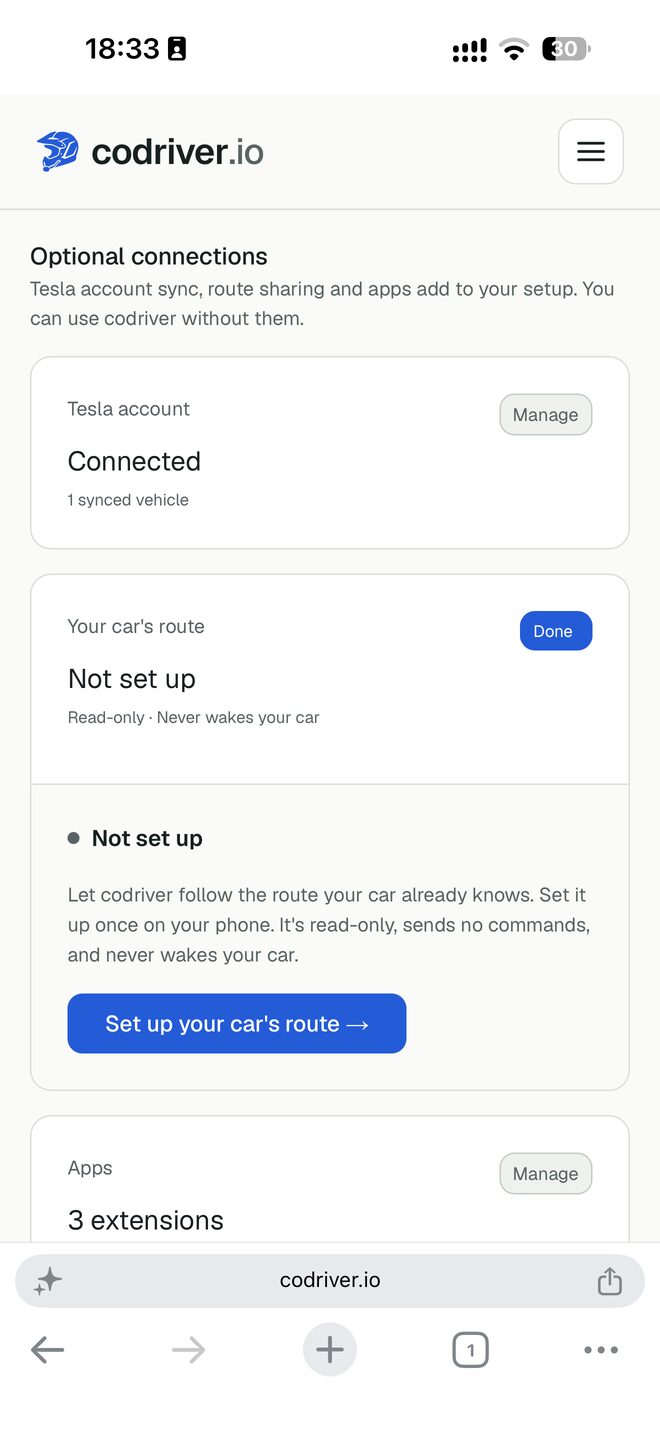
Sign in at codriver.io on your phone and open your account. Under “Optional connections”, the “Your car's route” card reads “Not set up”: tap “Set up your car's route”. You can also go straight to codriver.io/account/car-route.
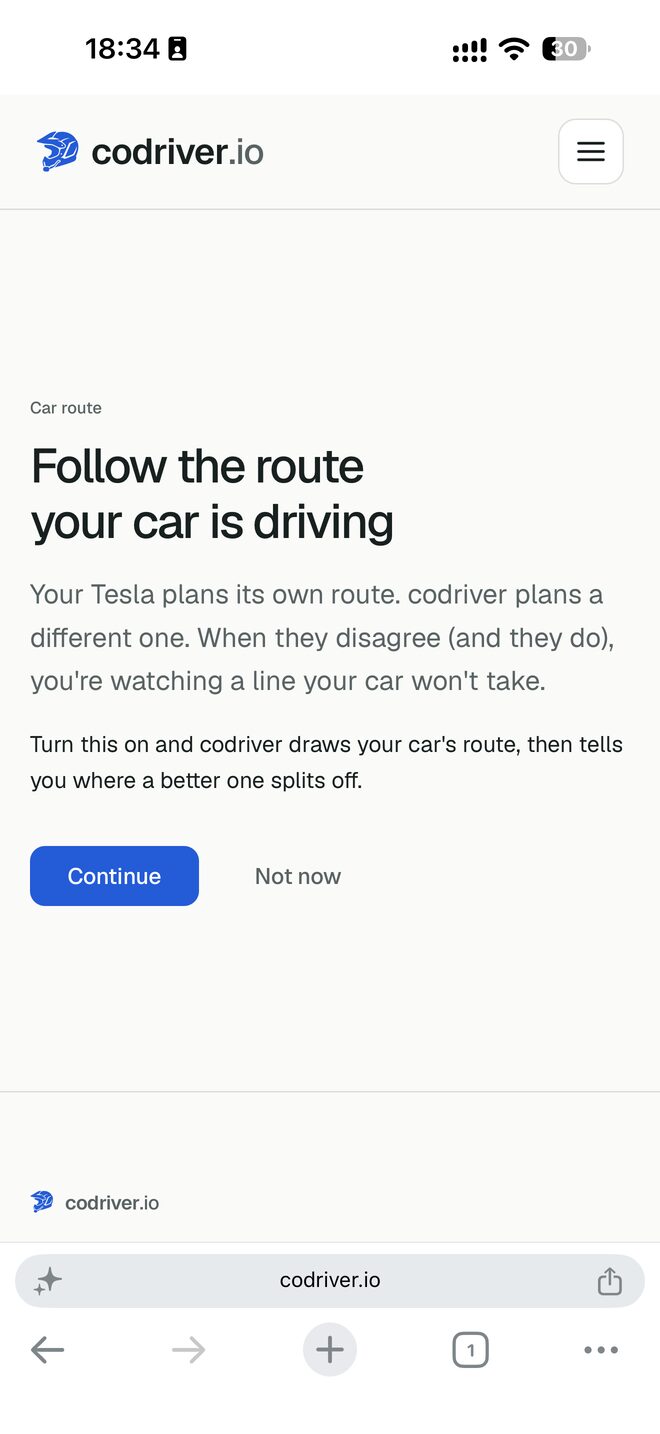
Tap “Continue”
The first screen explains the idea. Your Tesla plans its own route and codriver plans a different one; turn this on and codriver draws the car's route, then tells you where a better one splits off.
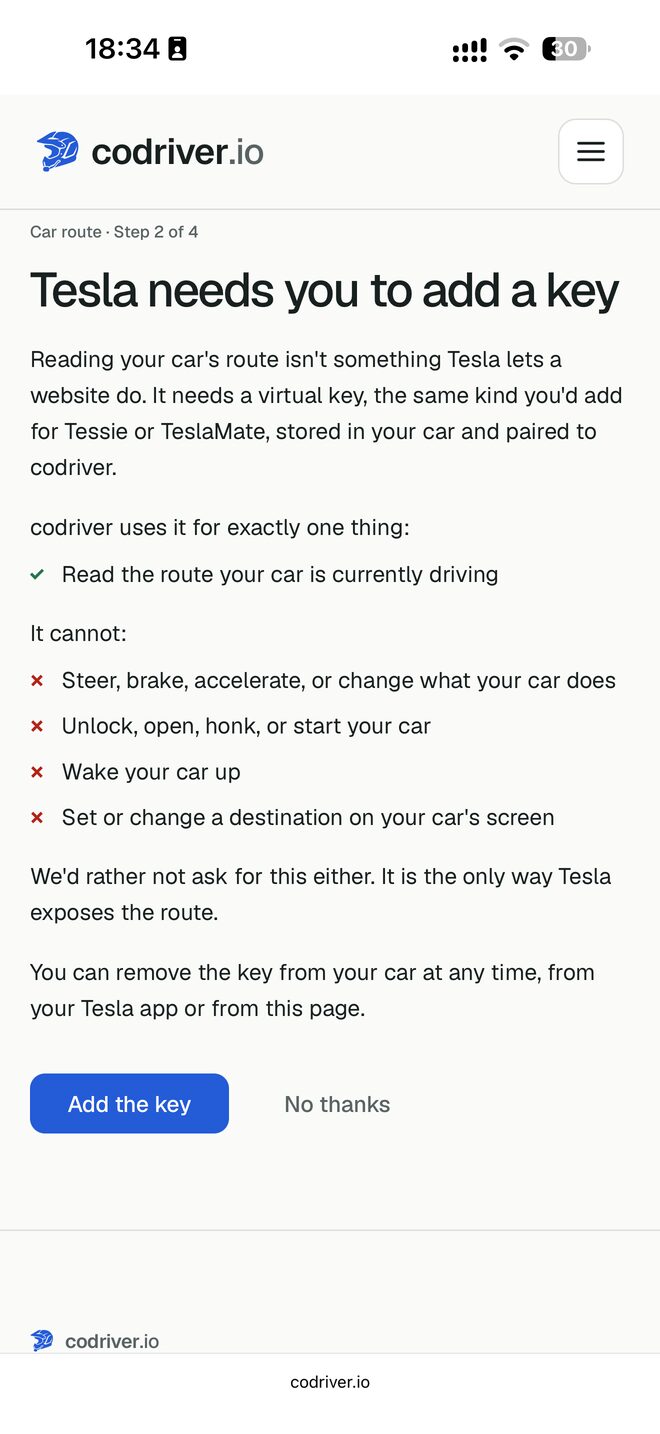
Read what the key can and cannot do
Tesla shares a car's route only with apps that hold a virtual key, the same kind you would add for Tessie or TeslaMate. The screen lists the one thing codriver uses it for, reading the route your car is currently driving, and what it cannot do: steer, brake or accelerate, unlock or start the car, wake it up, or set a destination. Tap “Add the key”.
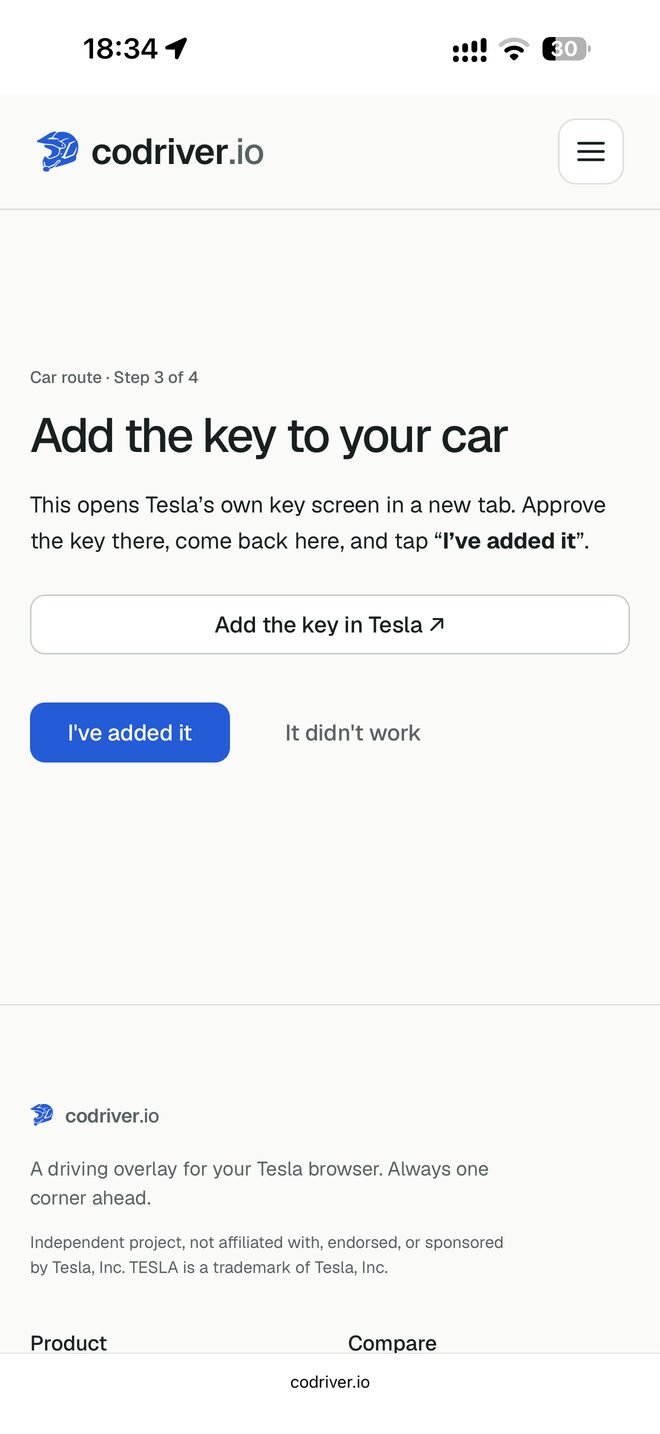
Approve the key in the Tesla app
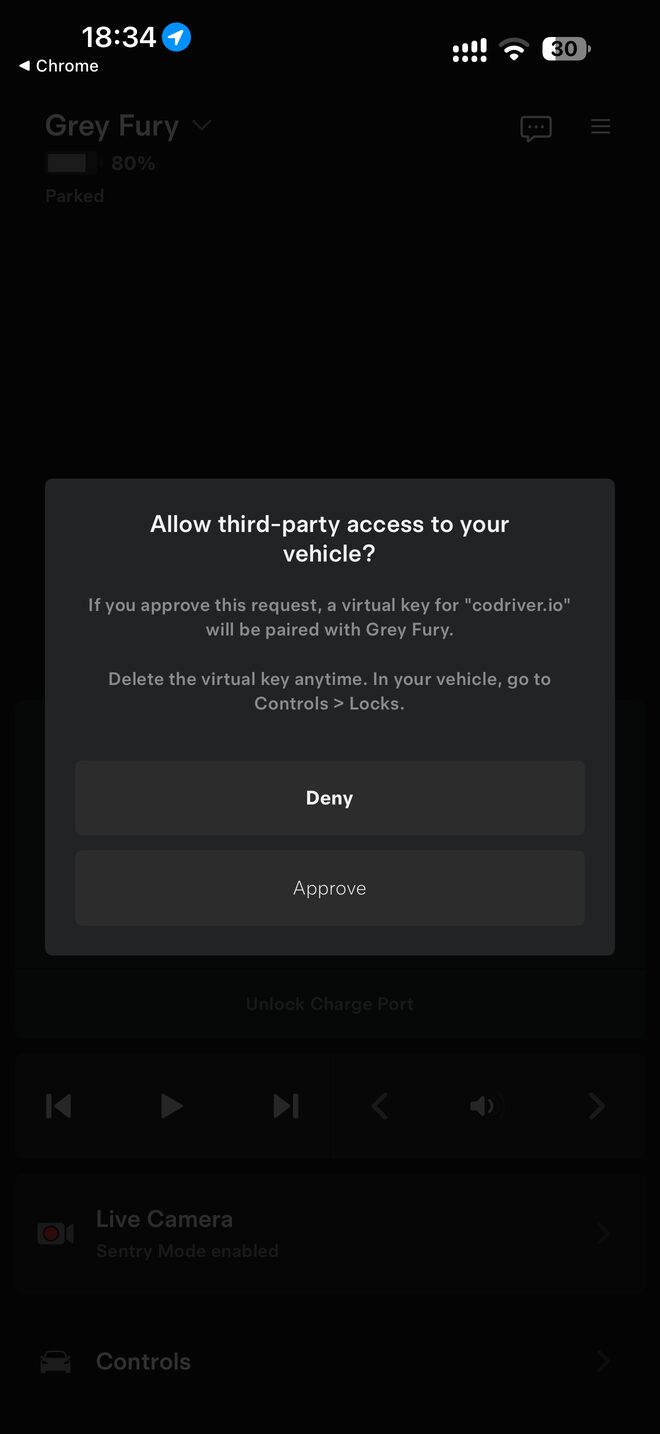
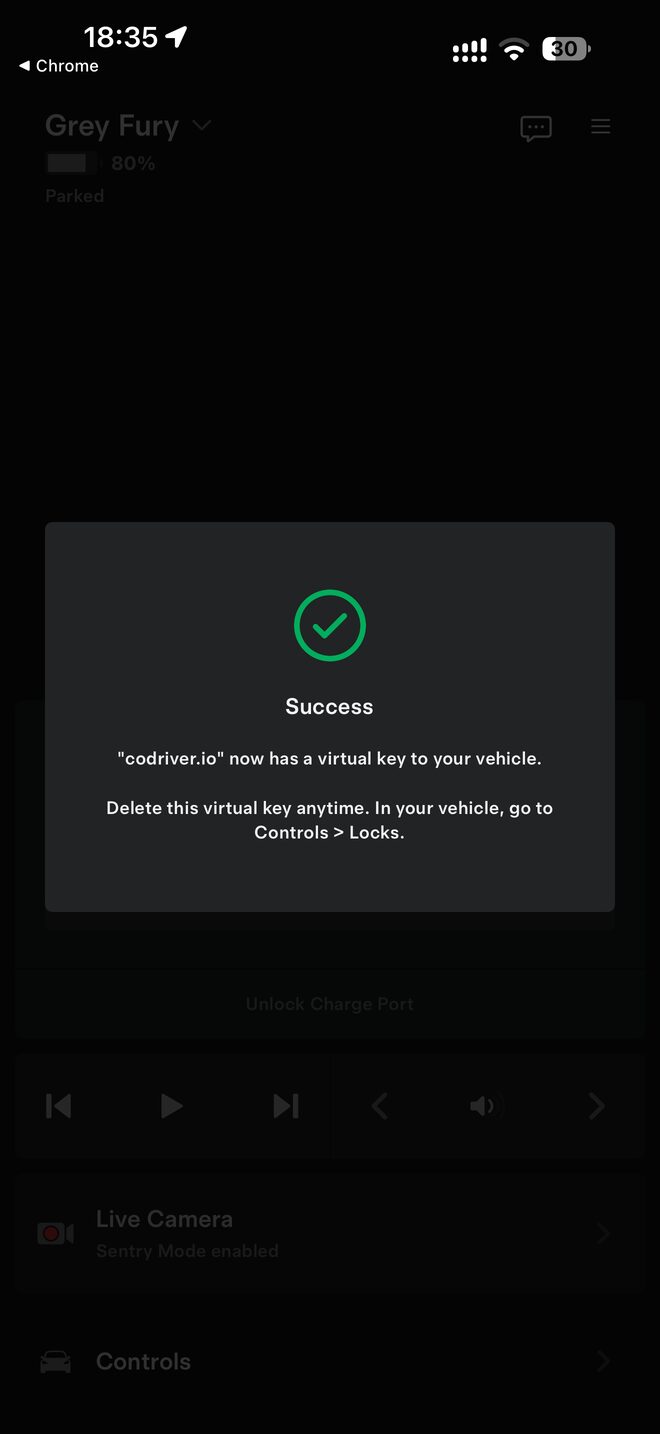
Tap “Add the key in Tesla”. The Tesla app opens and asks “Allow third-party access to your vehicle?” for codriver.io. Tap “Approve” with your phone near the car, and wait for “Success”. This is Tesla's own screen: codriver never sees your Tesla password.
Come back and tap “I've added it”
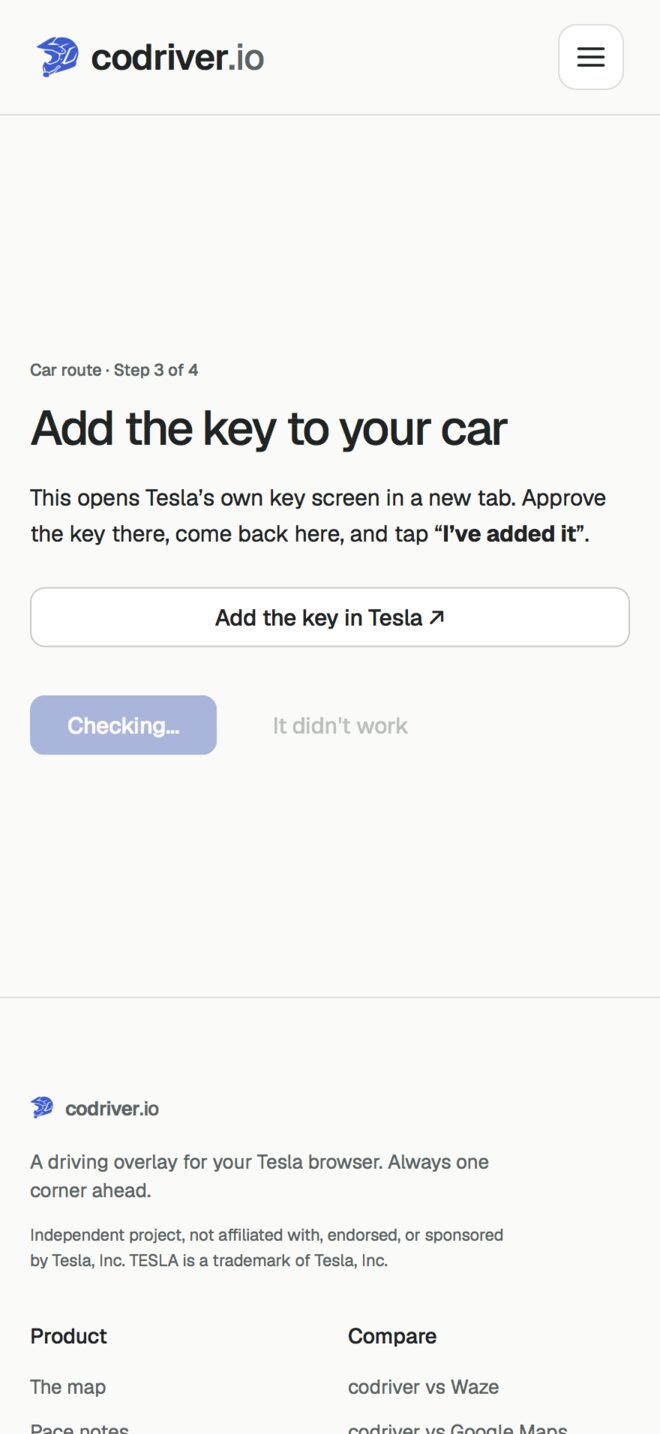
Return to the codriver tab and tap “I've added it”. The button reads “Checking…” for a few seconds. If you see “We can't see the key yet”, the approval has not reached Tesla: finish it in the Tesla app, then tap again. Two other screens can appear here. “Your car's data slots are full” means five apps already read your car's data, which is Tesla's limit; remove one at tesla.com under Account, Third-Party Apps. “Your car's software is too old for this yet” means the car needs an update first.
Let the car check in
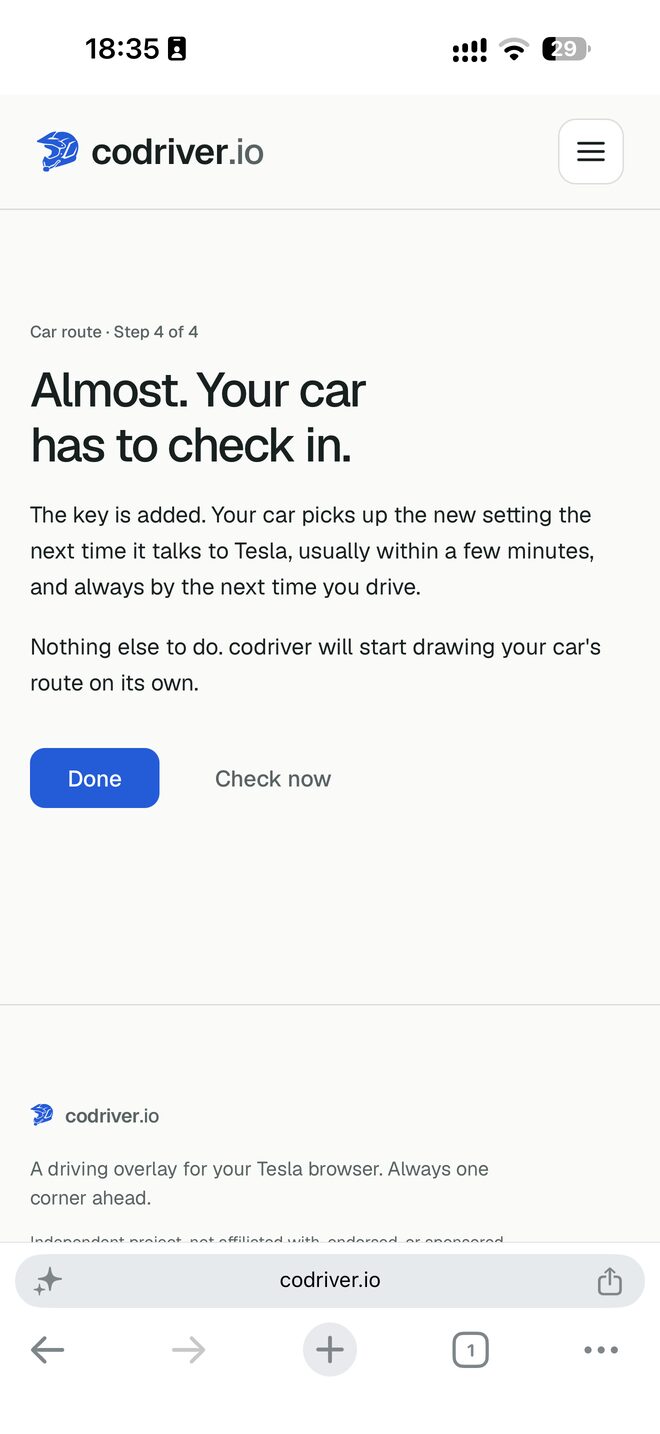
The last screen says “Almost. Your car has to check in.” The setting is saved on Tesla's side and the car picks it up the next time it connects. Waking the car is enough: open a door, get in, or start a drive. The screen watches for the car on its own and tells you when the route is coming through; “Check now” asks straight away, and “Done” takes you back to your account, where the card turns green once the car has checked in.
Set a destination in Tesla's navigation and drive
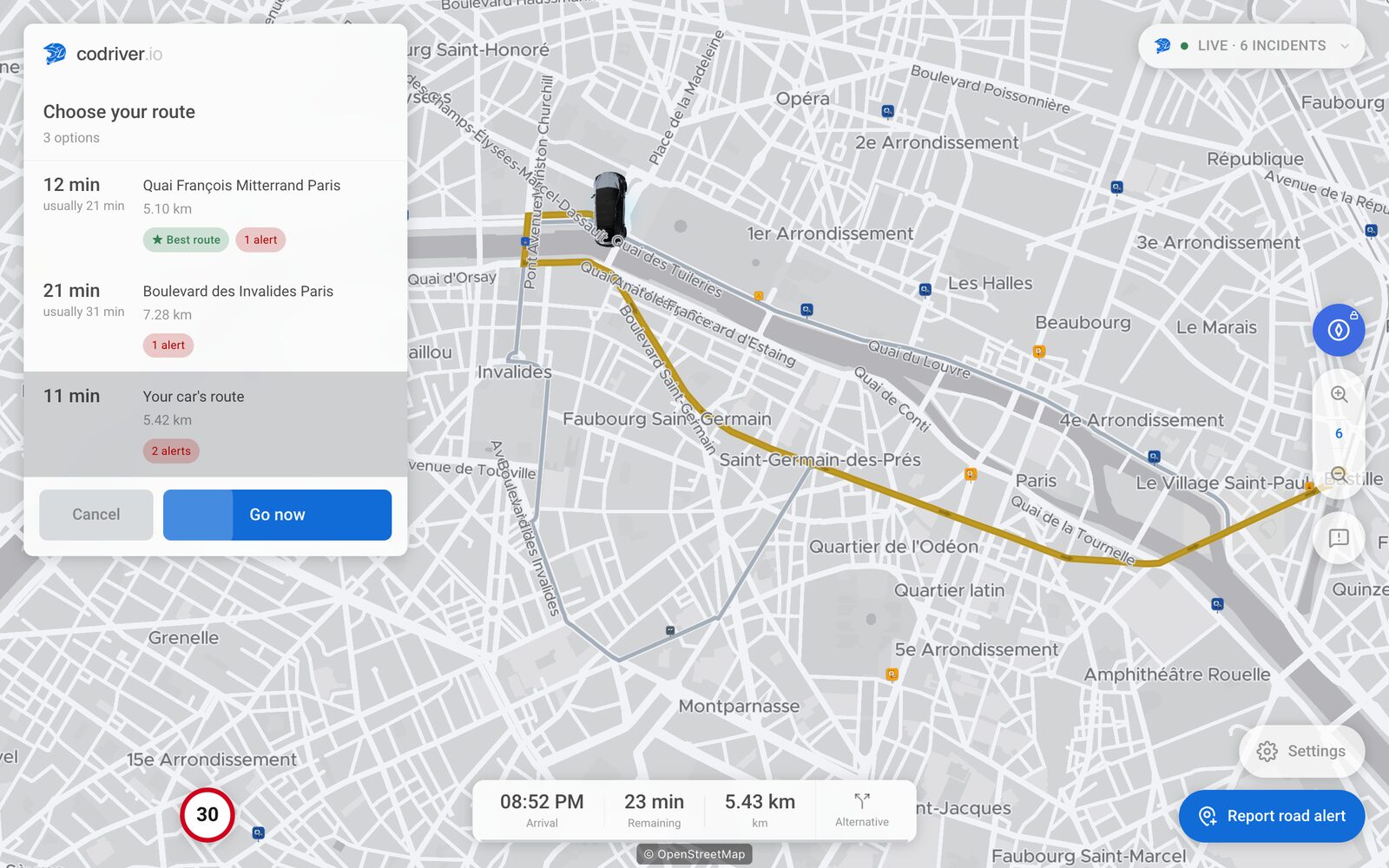
Set your destination on the Tesla screen as you always do, then open codriver in the car's browser. The route picker lists “Your car's route” next to codriver's own options, already selected, with the car's line drawn in gold on the map. Tap “Go now”. From there the trip pill reads “Tesla route”, and the turns, the arrival time and the spoken guidance follow the car. When the car reroutes, codriver follows. If you leave the route and Tesla sends nothing new, codriver shows “No route from Tesla — using codriver's route” with a “Sync” button to check the car again.
FAQ
Common questions
Why would I want this with FSD (Supervised)?
With FSD or Autopilot following Tesla's navigation, the car drives Tesla's route, not codriver's. Before Car route, codriver drew its own line and the two disagreed at the first junction. With it on, the line on codriver's map is the one the car is following, so the turn card, the alerts along the route and the arrival time all describe the road you are actually on.
I don't use FSD. Is it still useful?
Yes, if you prefer Tesla's directions: charging stops planned by the car, a destination sent from your phone or calendar, or simply the route you trust. You keep Tesla's route and get codriver's alerts, traffic and speed information on top of it, with no destination to enter twice.
What does the route advisor do on the car's route?
It compares the car's route with live traffic. When another road becomes faster by more than the threshold you chose in Settings, it draws that road in green from where it branches off, with the minutes saved and the reason when there is one. On the car's route the card adds “On Autopilot? Disengage to take it.” codriver cannot tell whether Autopilot or FSD is engaged and never controls the car: it suggests, you decide, and you take the road only when it is safe and legal.
What exactly does my car send?
Four things while it drives: the route its navigation has planned, the destination's position, the destination's name and the odometer. codriver does not ask your car for its live location. The route is held temporarily so the app in your car can draw it, cleared when the car reports the route has ended, and gone after six hours at most. It is not kept as trip history. Odometer readings are stored only if you separately opt in to usage and distance badges. The privacy page has the full wording.
Can codriver control my car with this key?
No. The key sets up this data stream and nothing else. codriver cannot send a command to your car, unlock it, set a destination or wake it.
How do I turn it off?
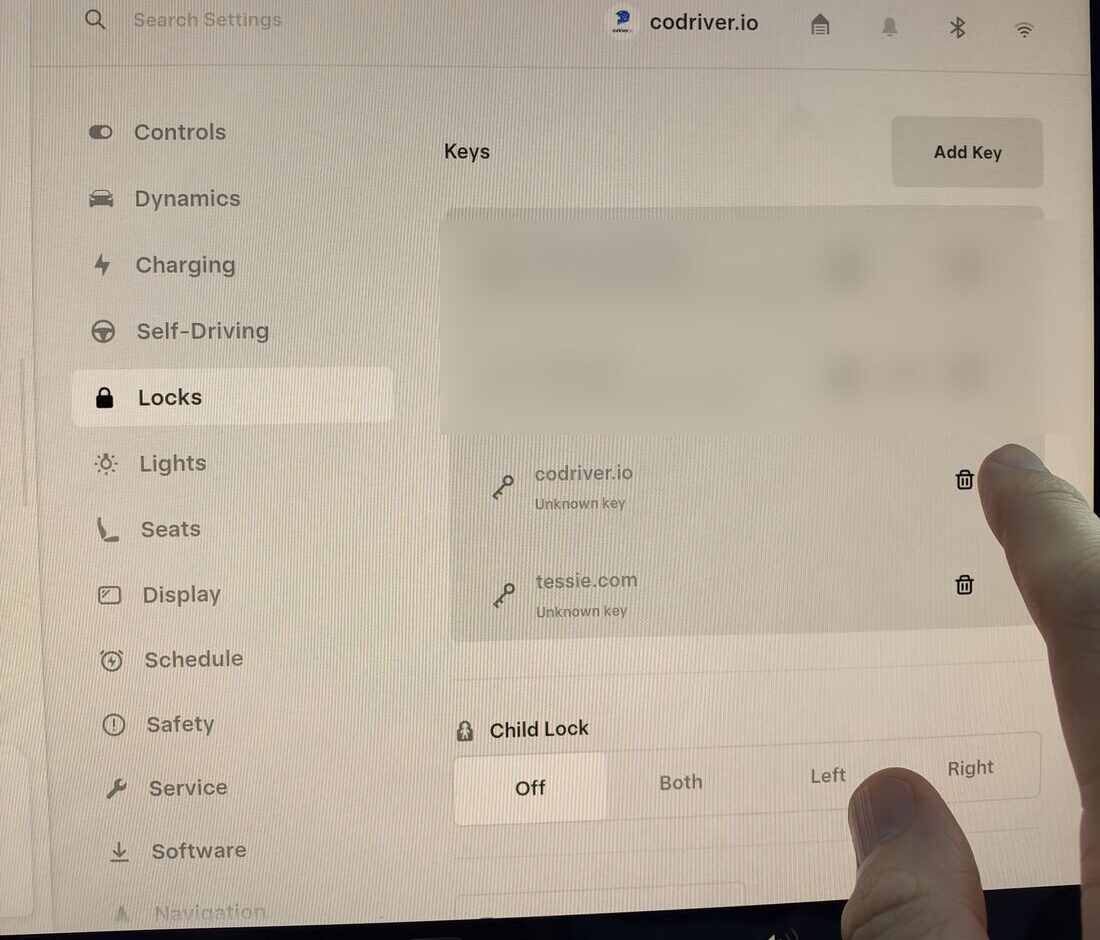
From your codriver account, open the “Your car's route” card and tap “Turn off”, which asks your car to drop the setting. You can also delete the key in the car: Controls, Locks, tap the bin next to codriver.io, then tap your key card on the console to confirm. Either works at any time.
The gold line never appears. What should I check?
A destination must be set in Tesla's own navigation, not only in codriver. On your account, the card should read “Following your car's route”; “Waiting for your car to check in” means the car has not connected since setup, and waking it or a short drive fixes it. “Not receiving your car's route” with a reconnect button means your Tesla sign-in needs renewing. If everything reads fine and the line still never shows, write to us from the support page.
Does it cost anything?
Car route is part of Premium, because the key and the live data stream have a direct cost for us. It comes with both Premium plans, monthly and yearly; the Free plan does not include it.
What is kept, and for how long, is on the privacy page. What else shipped with it is in the changelog.